Google Drive as server backup
November 28th 2025
Hello, this time, I will show you how to use google drive as server backup using rclone and kopia, no time to waste, lets me show you how to do it.
This tutorial are using RedHat based linux OS (almalinux)
Install Rclone
sudo dnf install rclone
Setup an google drive account
After you installed rclone, you can follow this step:
- Type rclone config
- Click N for creating new remote
- Enter the config name, i.e gdrive
- Choose the drive type, for this we can choose Google Drive (Drive)
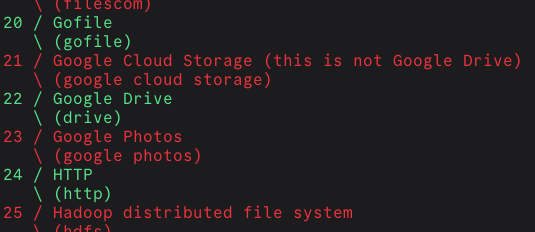
For this case, lets choose number 22.
- After that you can follow the installation, when choosing edit advanced config, you can skip it to make it simple.
- After you get into the Auth step like bellow this:

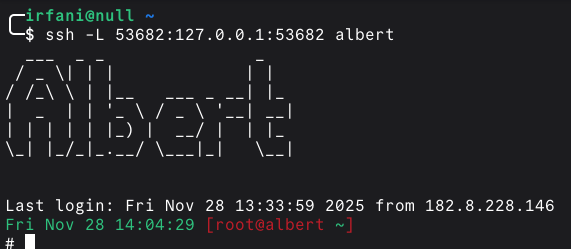
Bacause we can`t access the localhost / 127.0.0.1 to access the auth we need to tunnel to the server, we can SSH for this, the command I use are:
ssh -L 53682:127.0.0.1:53682 $USER@$IP
Example of successfull tunelling to the server.
 After that you can try to access the localhost link given by your VPS.
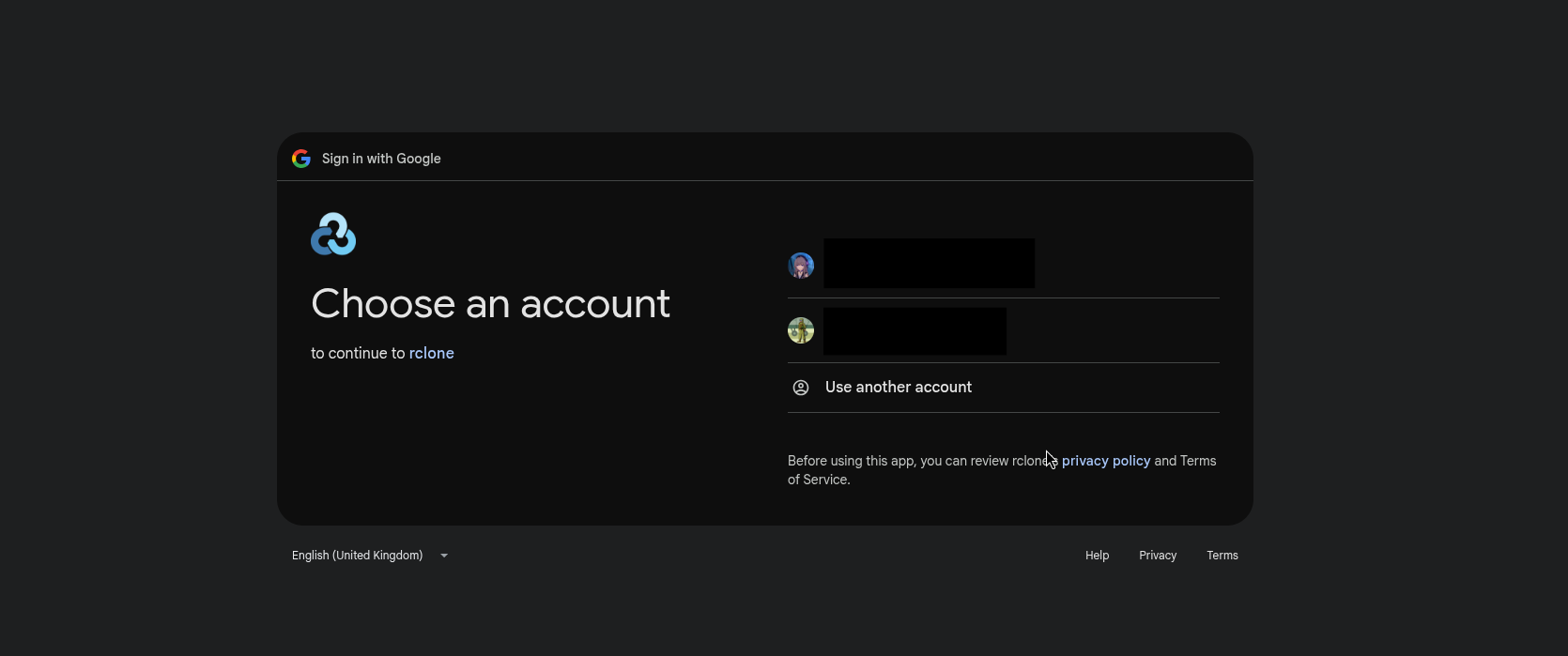
You can follow the auth login and finish it, after the auth are finish, you can go back to the terminal and you will see this messages:
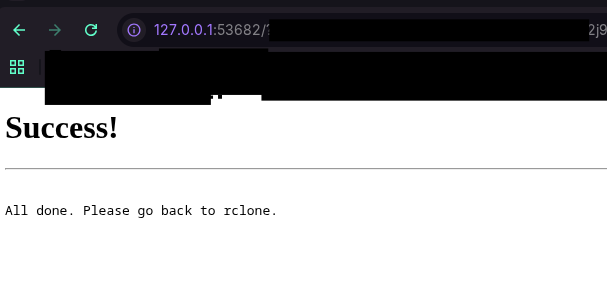
You can follow the rclone setup after this until complete, rclone setup are now complete, lets continue to set the Kopia.
Setup Kopia
Install PGP Key
rpm --import https://kopia.io/signing-key
Adding YUM Repository
cat <<EOF | sudo tee /etc/yum.repos.d/kopia.repo
[Kopia]
name=Kopia
baseurl=http://packages.kopia.io/rpm/stable/\$basearch/
gpgcheck=1
enabled=1
gpgkey=https://kopia.io/signing-key
EOF
Installing Kopia and Kopia-UI
sudo dnf install kopia kopia-ui
This guide details how to set up the Kopia Server as a background systemd service to enable the Web UI.
1. Create Systemd Service
Create the service file to manage the Kopia process.
sudo nano /etc/systemd/system/kopia-server.service
Paste the following configuration (replace YOUR_PASSWORD with a secure password):
[Unit]
Description=Kopia Server Web UI
After=network.target

[Service]
User=root
Environment=HOME=/root
ExecStart=/usr/bin/kopia server start \
  --address=0.0.0.0:51515 \
  --server-username=admin \
  --server-password=YOUR_PASSWORD \
  --tls-generate-cert \
  --tls-cert-file=/root/kopia-server.cert \
  --tls-key-file=/root/kopia-server.key
Restart=always
RestartSec=10

[Install]
WantedBy=multi-user.target
2. Enable and Start Service
Reload the system daemon, enable the service to start on boot, and start it immediately.
sudo systemctl daemon-reload
sudo systemctl enable kopia-server
sudo systemctl start kopia-server
3. Configure Firewall (Optional)
If you have an firewall you can follow this, otherwise skip this step.
Open port 51515 to allow external access.
For Firewalld (CentOS/AlmaLinux/Fedora):
sudo firewall-cmd --add-port=51515/tcp --permanent
sudo firewall-cmd --reload
For UFW (Ubuntu/Debian):
sudo ufw allow 51515/tcp
4. Access Web UI
Open your web browser and navigate to your VPS IP address.
- URL:
https://<YOUR_VPS_IP>:51515 - Username:
admin - Password: (The password defined in the service file)
Your browser will show a "Not Secure" warning because the SSL certificate is self-generated. You can safely accept the risk/proceed to access the dashboard.
5. Setup Storage for Kopia to google drive
Open the Kopia web UI, you can choose rclone remote, after that you can input the Rclone Remote Path and Rclone Executable Path, like this:
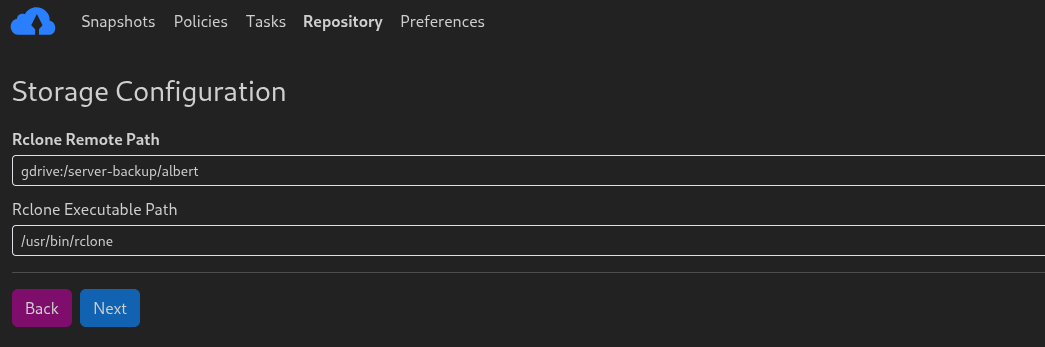
Where the Rclone Remote Path is the rclone config name + you folder where you want to store the files, example are >> gdrive:/server-backup/albert and for the Rclone Executable Path you can input /usr/bin/rclone
After that you can click Next and Input your repository password for your data.
If the setup are success, you will be redirected to the Kopia snapshot page.
You can click the new snapshot button to create new snapshot, from there you can choose the location where you want to backup, example are /home
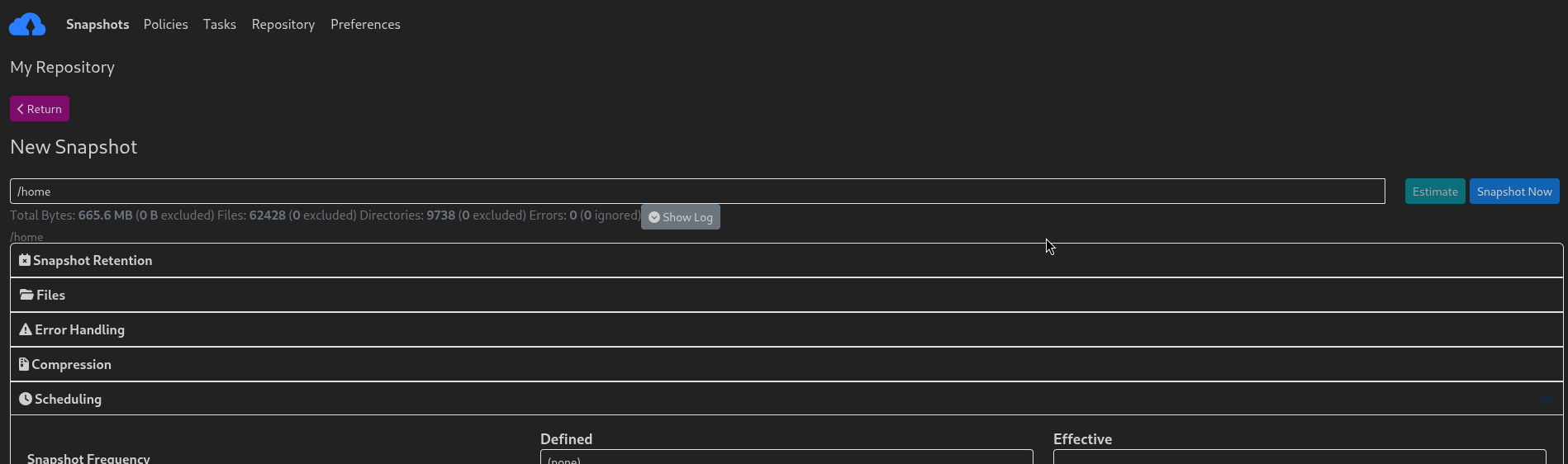
If everything is correct, you can click snapshot now and wait.
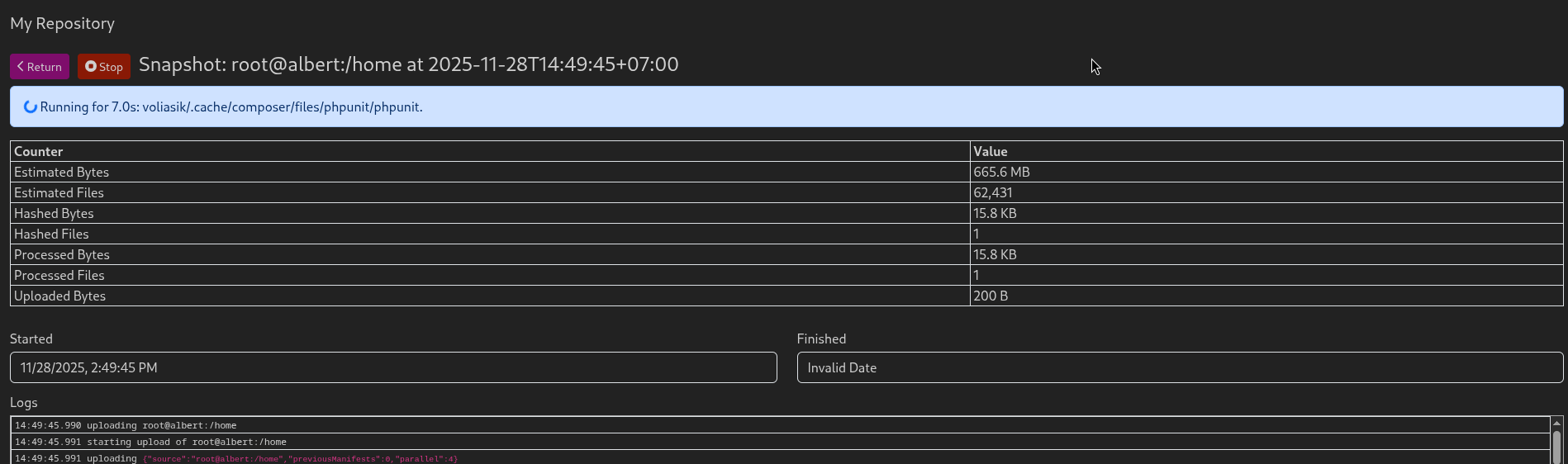
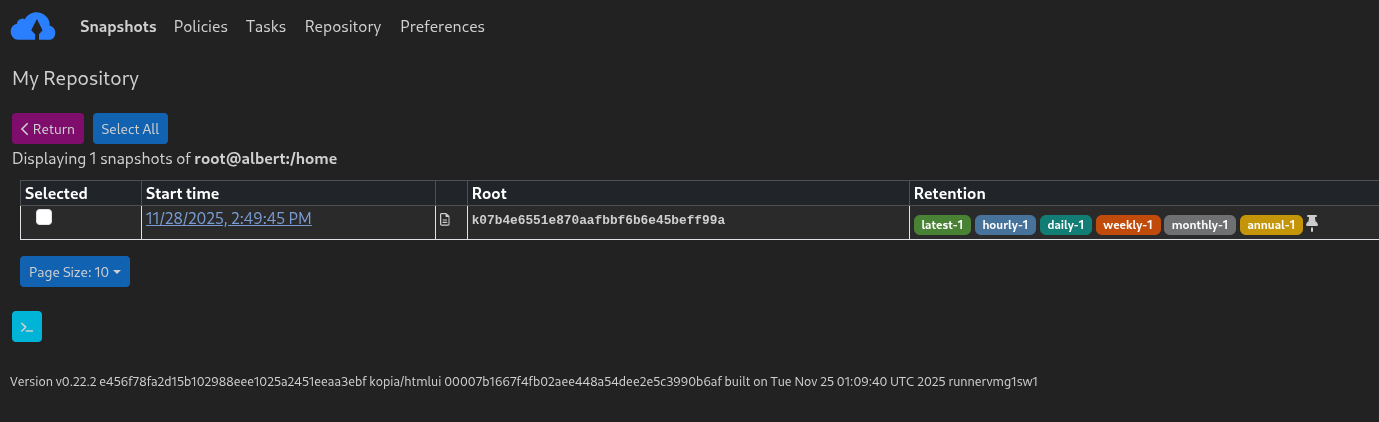
After the snapshot process are done, you can check your google drive folder and see its already populated with your encrypted files.
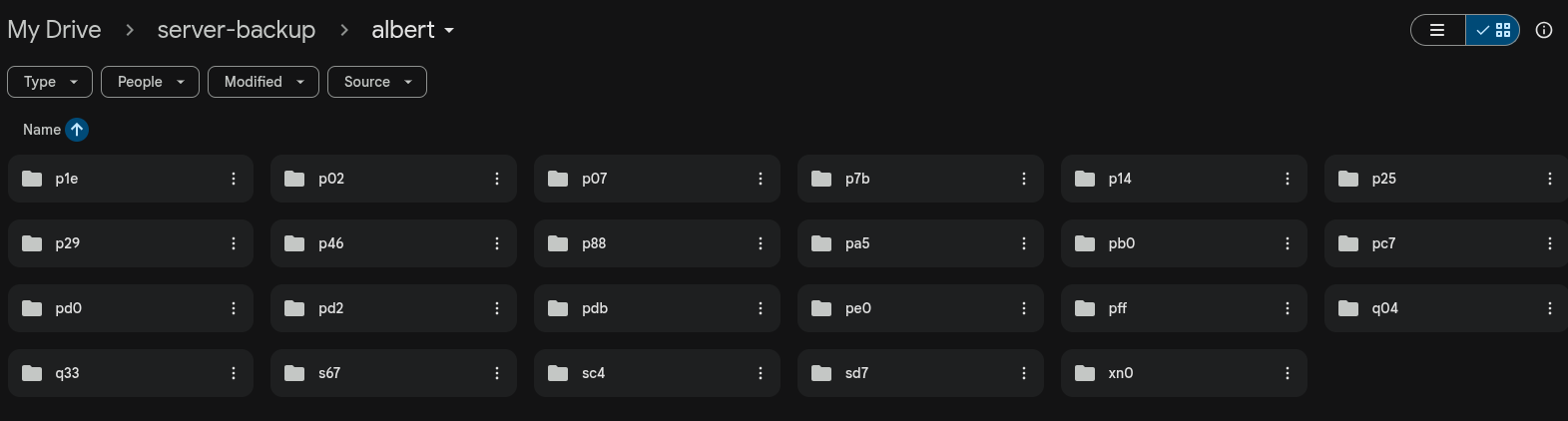
You can go back to the kopia snapshot, then click path >> your snapshot path i.e /home and select the snapshot date to view and restore your files.
< Upgrading Almalinux 9 Kernel |